
VBA – AutoFilter


In this Article
In VBA können Sie den AutoFilter verwenden, um einen Bereich von Zellen oder eine Excel-Tabelle zu filtern. In diesem Tutorial lernen Sie, wie Sie einen AutoFilter für eine oder mehrere Spalten und für mehrere Bedingungen erstellen können.
Wenn Sie lernen möchten, wie man einen erweiterten Filter in VBA verwendet, klicken Sie hier: Erweiterter VBA-Filter
AutoFilter in VBA erstellen
Zunächst zeigen wir, wie ein AutoFilter für einen Bereich erstellt wird, damit der Benutzer die Daten filtern kann. Die Daten, die wir in den Beispielen verwenden werden, sind in Abbildung 1 zu sehen: 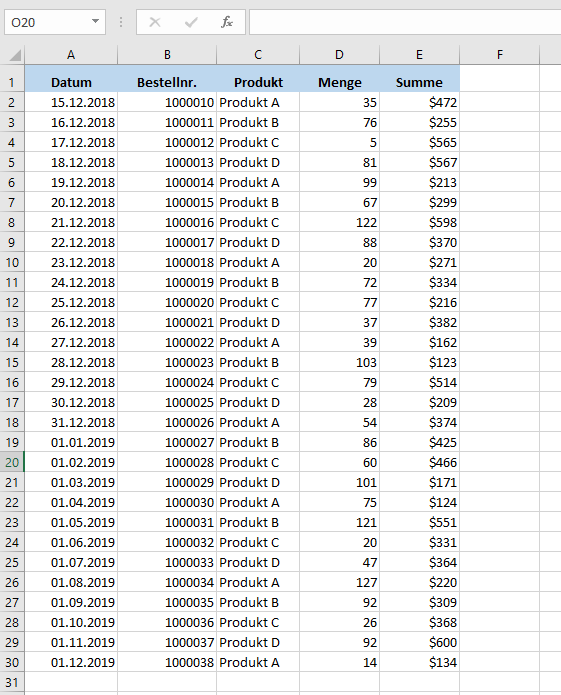
Abbildung 1. Daten für Autofilter-Beispiele
Hier ist der Code zum Erstellen vom AutoFilter:
Sheet1.Range("A1:E1").AutoFilterUm den AutoFilter zu aktivieren, müssen wir die Kopfzeile des Bereichs angeben (in unserem Fall A1:E1) und die Methode AutoFilter des Range-Objekts verwenden. Damit ist unser Datenbereich mit aktivierten Filtern versehen: 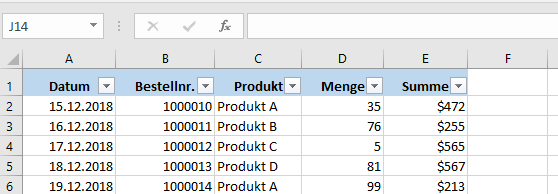
Abbildung 2. Autofilter für Daten aktiviert
AutoFilter mit Feld- und Kriterienparametern
Mit VBA können Sie auch automatisch ein bestimmtes Feld mit bestimmten Werten filtern.
Dazu müssen Sie die Parameter Field und Criteria1 der Methode AutoFilter verwenden. In diesem Beispiel wollen wir die dritte Spalte ( Produkt) nur nach Produkt A filtern. Hier ist der Code:
Sheet1.Range("A1:E1").AutoFilter Field:=3, _
                                 Criteria1:="Produkt A"
Im Parameter Field können Sie die Nummer der Spalte im Bereich (nicht in Excel) angeben, während Sie in Criteria1 den Wert eingeben können, nach dem Sie filtern möchten. Nach dem Ausführen des Codes sieht unsere Tabelle folgendermaßen aus:
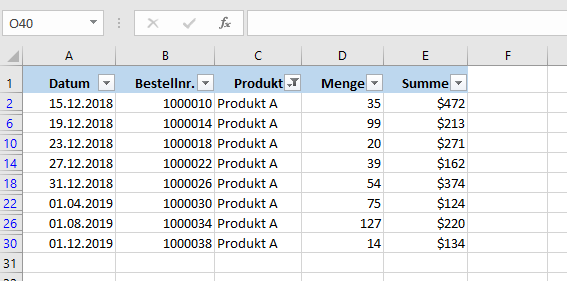
Abbildung 3. AutoFilter mit Feld und Kriterien
Wie Sie sehen können, werden nur Zeilen mit Produkt A in der dritten Spalte im Datenbereich angezeigt.
AutoFilter mit Feld und mehreren Kriterien (Filterwerten)
Wenn Sie ein Feld nach mehreren Werten filtern wollen, müssen Sie den Parameter Operator der Methode AutoFilter verwenden. Um mehrere Werte zu filtern, müssen Sie Operator auf xlFilterValues setzen und außerdem alle Werte von Criteria1 in ein Array packen. In diesem Beispiel filtern wir die Spalte Produkt nach Produkt A und Produkt B. Hier ist das Codebeispiel:
Sheet1.Range("A1:E1").AutoFilter Field:=3, _
                                 Criteria1:=Array("Produkt A", "Produkt B"), _
                                 Operator:=xlFilterValues
Wenn wir den Code ausführen, erhalten wir nur Zeilen mit Produkt A und Produkt B, wie Sie in Abbildung 4 sehen können:
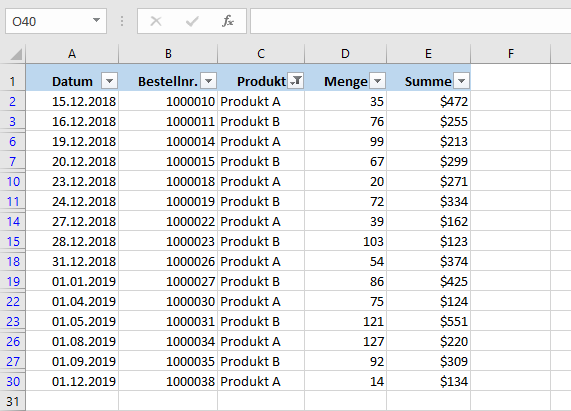
Abbildung 4. AutoFilter mit mehreren Kriterien (Filterwerten)
AutoFilter – Datenbereich mit mehreren Kriterien
Wenn Sie ein Feld mit mehreren Kriterien filtern möchten, müssen Sie die Parameter Criteria1 und Criteria2 sowie den Operator xlAnd verwenden.
Im nächsten Beispiel werden wir die erste Spalte (Datum) nach Daten aus Dezember 2018 filtern. Wir haben also zwei Kriterien: ein Datum größer als der 01.12.2018 und kleiner als der 31.12.2018. Dies ist der Code:
Sheet1.Range("A1:E1").AutoFilter Field:=1, _
                                 Criteria1:=">=01.12.2018", _
                                 Operator:=xlAnd, _
                                 Criteria2:="<=31.12.2018"
Wenn wir den Code ausführen, können Sie sehen, dass nur Daten aus Dezember im Datenbereich angezeigt werden:
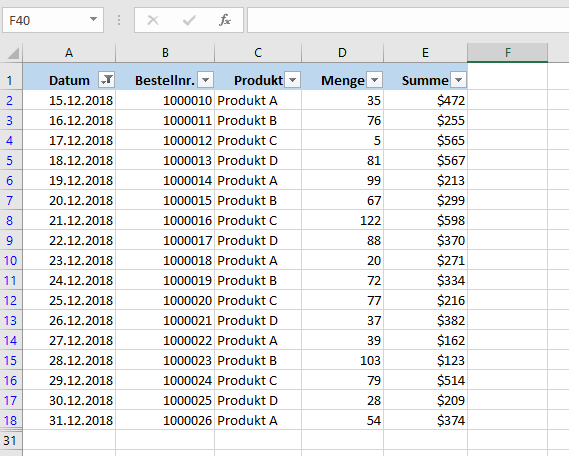
Abbildung 5. AutoFilter mit mehreren Kriterien für das Feld
Die Operator-Parameterwerte der AutoFilter-Methode
In der folgenden Tabelle sehen Sie alle möglichen Werte des Operator-Parameters der AutoFilter-Methode und ihre Beschreibungen:
| Operator | Beschreibung |
| xlAnd | Schließt mehrere Kriterien ein – Criteria1 und Criteria 2 |
| xlOr | Schließt eines der Mehrfachkriterien ein – Criteria1 oder Criteria 2 |
| xlTop10Items | Filtert eine bestimmte Anzahl der am höchsten eingestuften Werte (Anzahl in Criteria1 angegeben) |
| xlBottom10Items | Filtert eine bestimmte Anzahl der am niedrigsten eingestuften Werte (Anzahl in Criteria1 angegeben) |
| xlTop10Percent | Filtert einen bestimmten Prozentsatz der am höchsten eingestuften Werte (% in Criteria1 angegeben) |
| xlBottom10Percent | Filtert einen bestimmten Prozentsatz der am niedrigsten eingestuften Werte (% in Criteria1 angegeben) |
| xlFilterValues | Schließt mehrere Kriterienwerte anhand eines Arrays ein |
| xlFilterCellColor | Filtert Zellen nach Farben |
| xlFilterFontColor | Filtert Zellen nach Schriftfarben |
| xlFilterIcon | Filtert Icons |
| xlFilterDynamic | Dynamische Werte filtern |
VBA Coding Made Easy
Stop searching for VBA code online. Learn more about AutoMacro - A VBA Code Builder that allows beginners to code procedures from scratch with minimal coding knowledge and with many time-saving features for all users!
Learn More!