Advanced Filter in Excel – Filter Multiple Criteria & More!

Written by

Reviewed by
This tutorial demonstrates the capabilities of advanced filters in Excel.
AutoFilter
Excel enables you to filter data by using its efficient Filter tool on the Ribbon or the FILTER Function (in newer versions of Excel). Many find these features very useful.
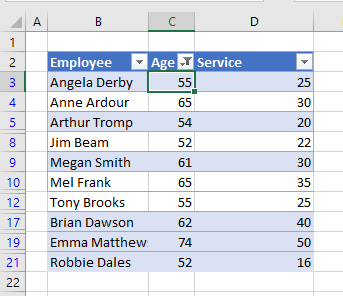
However, the filter tool has some very specific limitations. You can filter using AND logic in a single column – so you can filter everyone who is older than 50 and whose years of service is greater than 20. Then, if you wish to filter on a second column, (service) the data has to be contained within the first filter (age).
In the graphic above, you have filtered on age (greater than 50). You can now filter once again on service, but only the service within the already filtered age criteria are available to filter on. If you then clear the filter, you can see that there is data in the service column ranging from 2 to 50. There are several ways you can filter, but some ways you cannot.
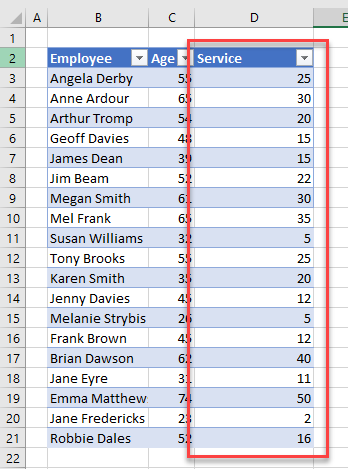
For example, you can use OR logic in a single column by filtering on multiple values in that column.
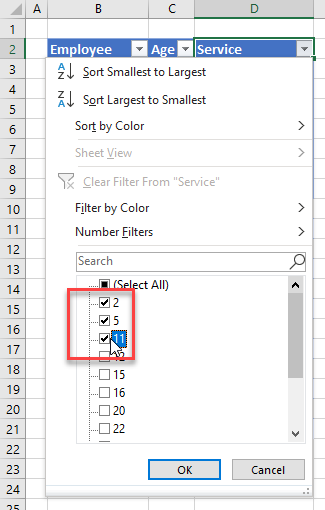
In the example above, the data is filtered to only show rows where years of service is 2, 5, or 11.
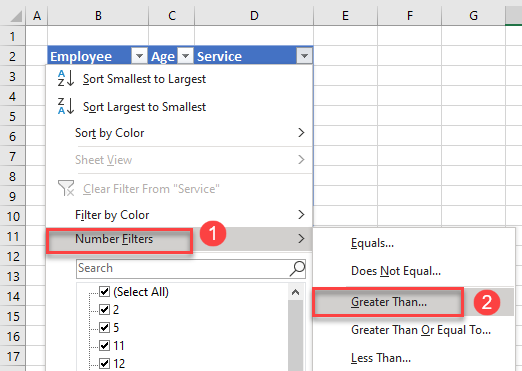
- To use a greater than / less than amount, use the number filter option. Select the drop down next to the heading you wish to filter. Then click Number Filters and select the relevant option – in this instance, Greater Than.
- Type in the comparison value and click OK.
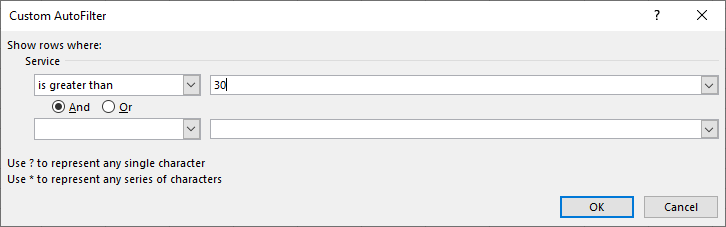
This shows all rows where years of service is greater than 30.
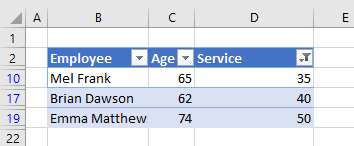
You can also use the And / Or options available in Custom AutoFilter.
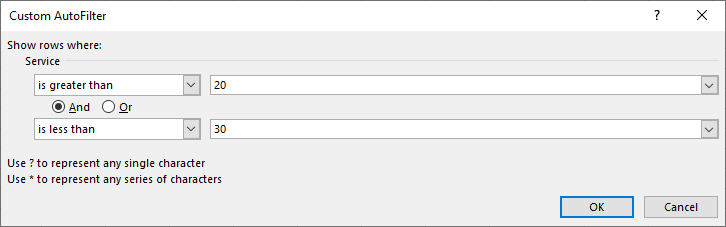
The filter below returns all records where years of service is between 20 and 30 years – greater than 20 And less than 30.
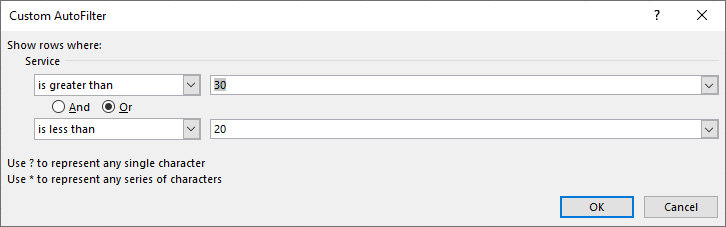
Whereas this one returns all records that are up to 20 Or over 30.
However, should you want to filter all the records where the service is greater than 20 or the age is greater than 50, you would not be able to use AutoFilter to do so.
Advanced Data Filter
Advanced Filter in Excel lets you set a criteria range that enables you to filter on two or more columns of data using and/or scenarios (“Filter With Multiple Criteria” example below). But first, note that it’s also a great way to extract unique data from a list with duplicates.
Extract Unique List
Excel now has a feature that enables you to remove duplicates and quickly isolate unique records. But this feature is relatively new, so alternatively, you can use advanced filters to remove duplicates in any version.
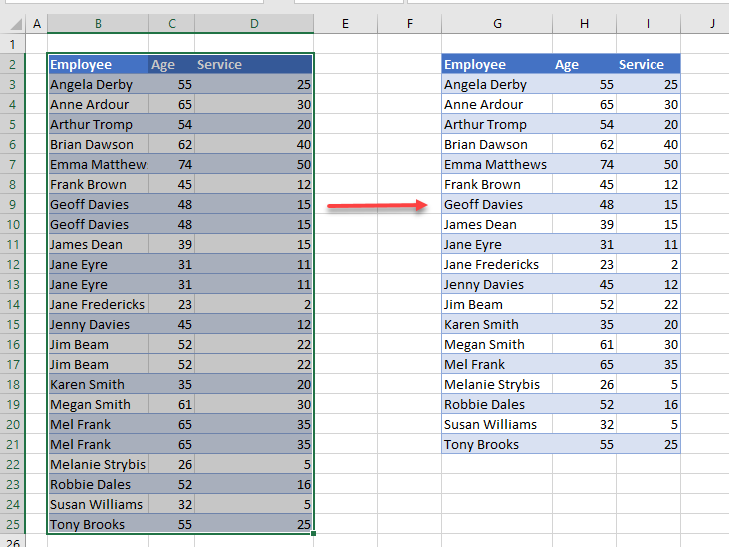
Consider the data below. Somehow, you have managed to end up with duplicates in your data. (Perhaps the entries were copy-pasted from overlapping sources.) You need to remove the duplicates to clean up and use the dataset.
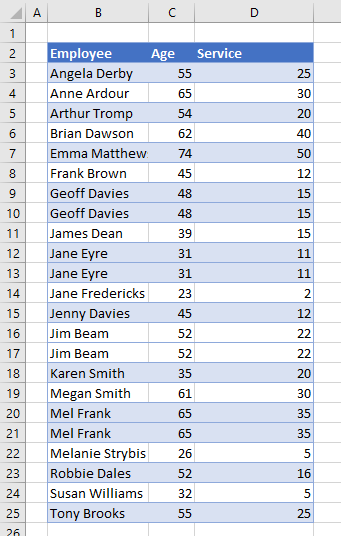
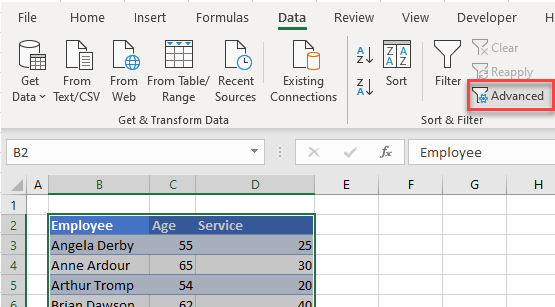
- Highlight the data, and then in the Ribbon, select Data > Sort & Filter > Advanced.
- In the Advanced Filter dialog, select the following:
- Action: Copy to another Location.
- List Range: Should already be selected – what you have highlighted.
- Criteria Range: This should be any blank cell.
- Copy To: A blank area of the worksheet.
- Unique records only: Make sure this is checked.
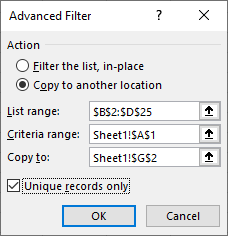
- Click OK to extract unique records.
Filter With Multiple Criteria
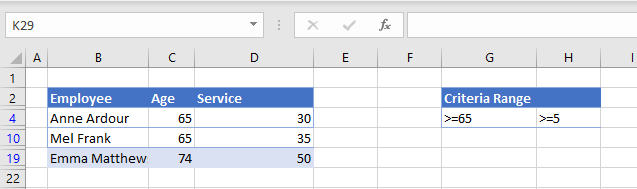
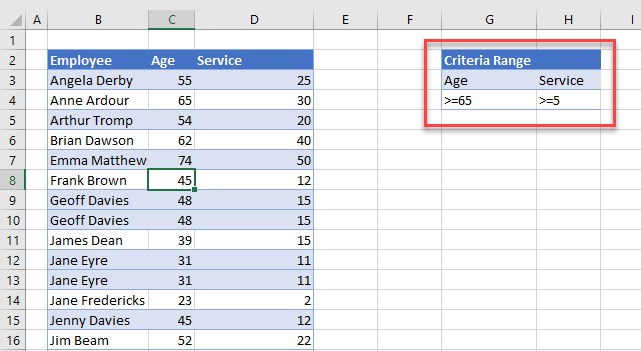
To filter data on multiple columns with an AND scenario, set up a criteria table for the data filter. In the graphic below, you wish to find all employees who are over 65 and have had over 5 years of service.
Now, you can do this using AutoFilter, but let’s use advanced filters here.
- In the Data menu, select Sort & Filter > Advanced.
- Then, in the Advanced Filter dialog box, select these options:
- Action: Select Filter the list, in-place.
- List Range: your selected data (e.g., B2:D25 – including headings!).
- Criteria range: make sure you have selected the headings and the values (e.g., G3:G4 as shown in the graphic below).
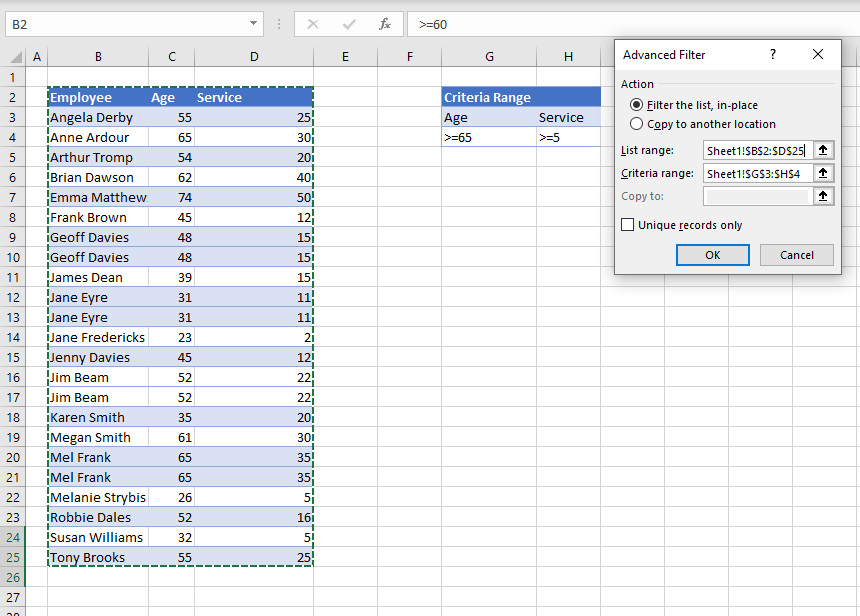
- Click OK to filter the data.
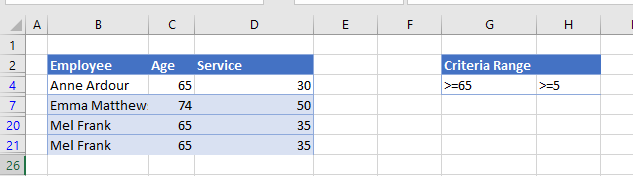
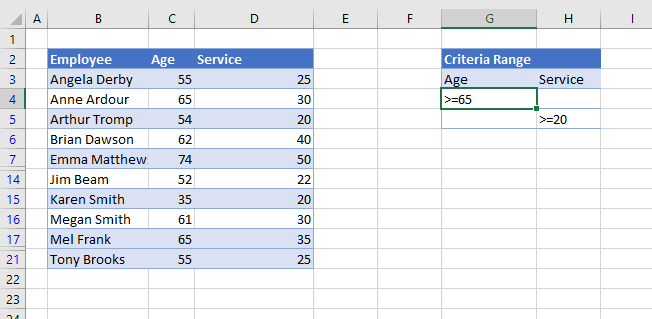
Now, let’s try an OR filter:
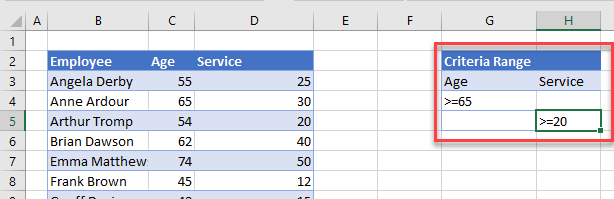
This criteria statement finds all employees who are 65 or older, or who have worked at the firm for at least 20 years.
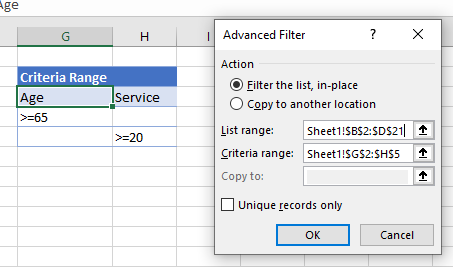
Expand your criteria to include the extra row, and then click OK.
Create Multiple Criteria Scenarios
You can further expand your criteria to include multiple scenarios.
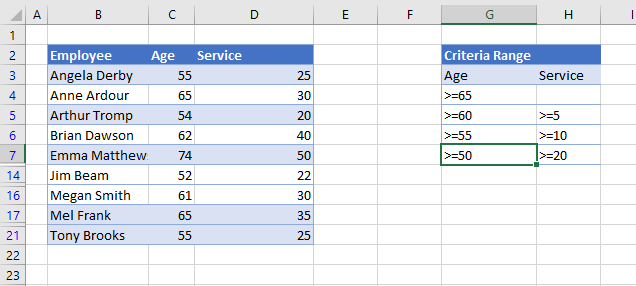
For this example, select all employees who are:
- 65 and over, or
- 60 or over and have worked for the firm for more than 5 years, or
- 55 or over and have worked for the firm for more than 10 years, or
- 50 or over and have worked for the firm for more than 20 years.
The criteria range should be set up thusly:
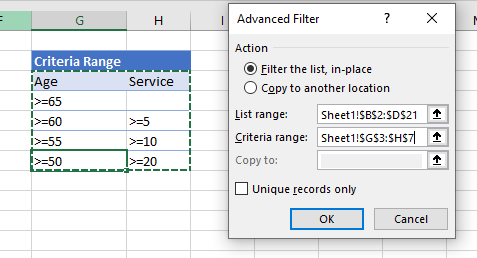
Click OK to implement the filters.