
Excel VBA – Get Column Letter from Cell Address

Written by

Reviewed by
In this Article
When referring to a range in Excel you usually reference its column letter and row number.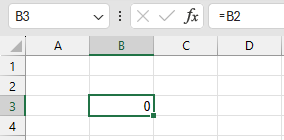
In VBA, you will usually see the Range Object used to refer to a range using the same notation:
Range("B2").Value = "Range B2"

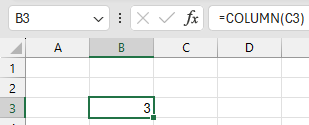
However, you may not always know the column letter and Excel’s Column Function returns the column number of a range, not it’s column letter.
So you have two options:
- You can write your own VBA function to get the Column Letter
- You can use the Cells Object instead of the Range Object to reference a cell (allowing you to use the Column Number instead of the Letter)
We will demonstrate both options below.
VBA Function to Return Column Letter
The following function returns the letter of the column rather than the number. The routine will return blank if more than a single cell is referenced:
Function GetColumnLetter(Cell_Add As Range) As String
Dim No_of_Rows As Integer
Dim No_of_Cols As Integer
Dim Num_Column As Integer
No_of_Rows = Cell_Add.Rows.Count
No_of_Cols = Cell_Add.Columns.Count
If ((No_of_Rows <> 1) Or (No_of_Cols <> 1)) Then
    GetColumnLetter = ""
    Exit Function
End If
 Num_Column = Cell_Add.Column
If Num_Column < 26 Then
    GetColumnLetter = Chr(64 + Num_Column)
Else

    GetColumnLetter = Chr(Int(Num_Column / 26) + 64) & Chr((Num_Column Mod 26) + 64)
End If
End Function
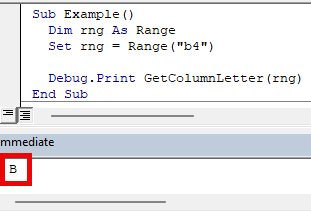
To use this code in VBA, just paste the function into a code module and reference the function like so:
Sub Example()
  Dim rng As Range
  Set rng = Range("b4")

  Debug.Print GetColumnLetter(rng)
End Sub
This will output “B”, the column letter of range B4.
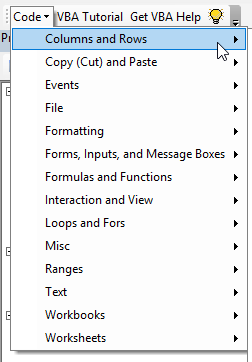
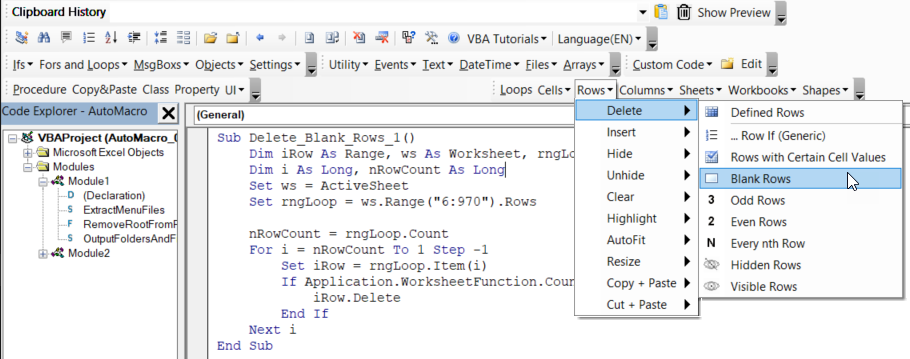
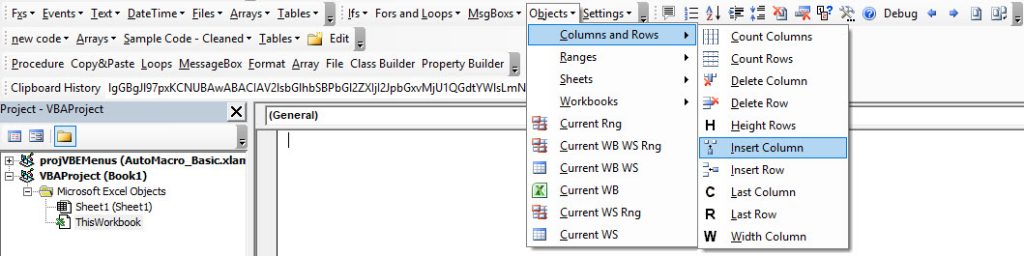
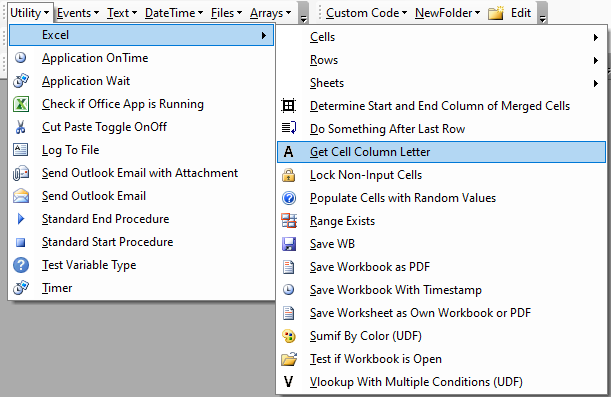
This function can easily be found in AutoMacro’s Code Library:
Excel Function to Get Column Letter
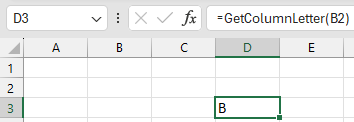
Once the function has been added to VBA, you can also reference it inside Excel by its function name:
=GetColumnLetter(B2)
Get Column Letter vs. Using Cells Object
Instead of using the above function, you might consider using the VBA Cells object. When using the cells object, you can reference a cell by it’s column number. For example, this code will select cell D3 (row 3, column 4)
Cells(3, 4).SelectLet’s look at an example of using this in a Loop:
Sub FormatCells()
   Dim x As Integer
   Dim y As Integer
   For x = 1 To 10
      For y = 1 To 5
         If Cells(x, y) > 5 Then
            Cells(x, y).Interior.Color = vbRed
         End If
      Next y
   Next x
End Sub
This will loop through Cells A5 to E10.
If you know the column number, you can use this approach and there’s no need to fetch the column letter using the function above.
VBA Coding Made Easy
Stop searching for VBA code online. Learn more about AutoMacro - A VBA Code Builder that allows beginners to code procedures from scratch with minimal coding knowledge and with many time-saving features for all users!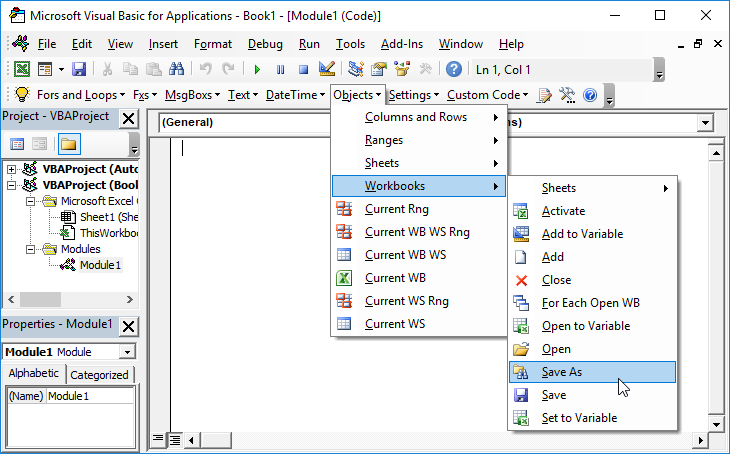
Learn More!